IIS Server Activation and Creating Virtual Folder
Please follow the steps below to run your IIS Server;
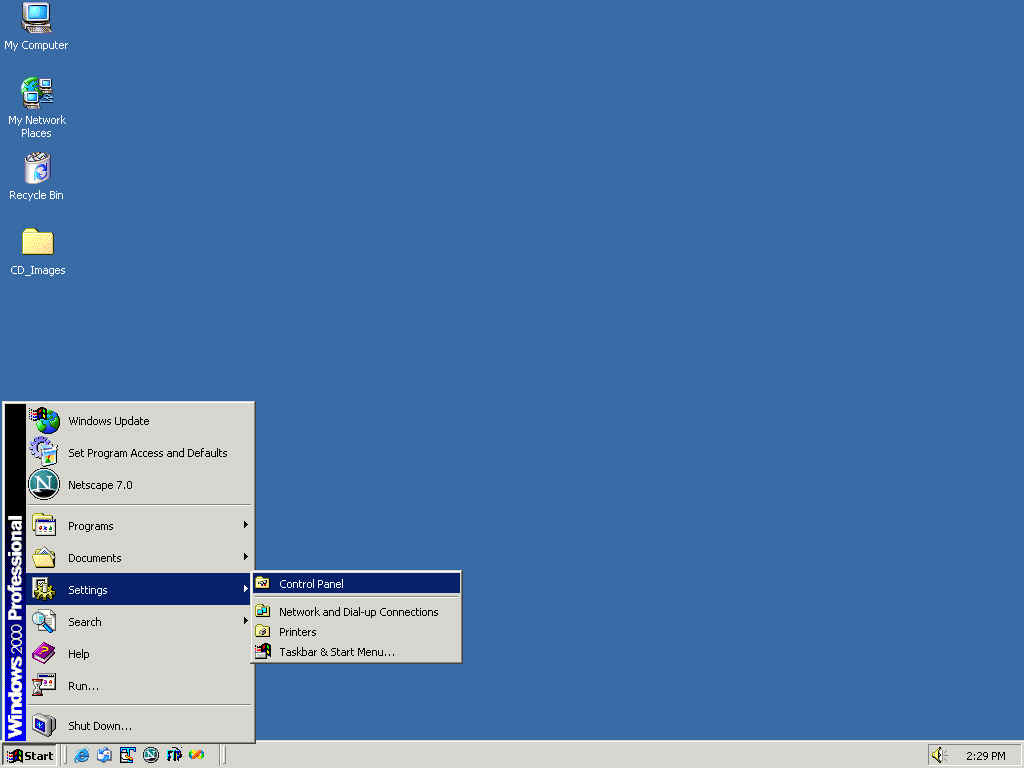
Go : Start > Settings > Control Panel (See image 1)
Click on: Administrative Tools
Click on: Personal Web Manager
(Start > Settings > Control Panel > Administrative Tools)
If it is not running (See image 2) , click
Start to run it. (See image 3)
Now you can close the Personal Web Manager
Now, IIS server is up and running, to test it open an Internet Explorer, and type "http://localhost/" to your address bar.
Creating a virtual folder for your Lab Assignment follow the steps below;
First create folder named "LabAssignment2" in the "C:\Inetpub\wwwroot" folder using Windows Explorer
Click on: Internet Services Manager (Start > Settings > Control Panel > Administrative Tools)
Go to : Default Web Site (Image 4)
Find the folder that you created, and Right Click on it, and select the Properties from the menu.
Image 5, will come up, Click on "Create" Button.
You can check all the
options,
Script source access
Read
Write
Directory Browsing
Done
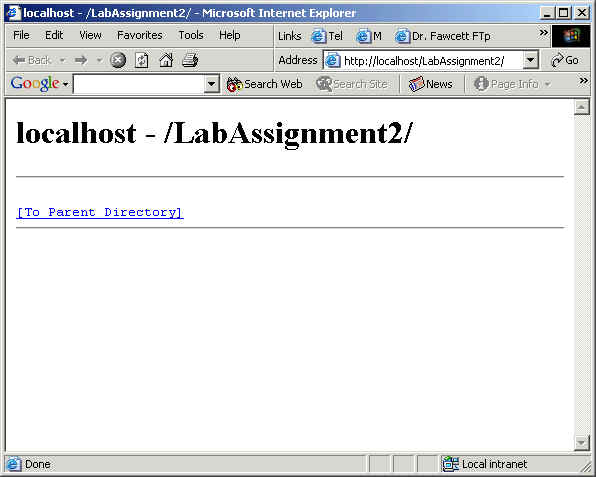
To test the folder just type following to Internet Explorer Address Bar, "http://localhost/LabAssignment2", or click it, if you use the same folder name. If you checked Directory Browsing, you should see the Image 6
Image 1
Image 2
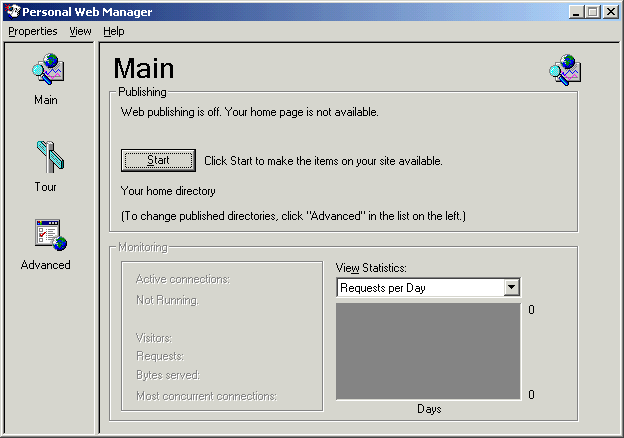
Image 3
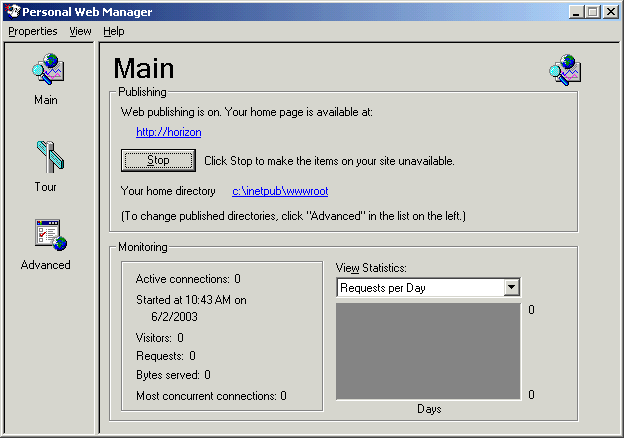
Image 4
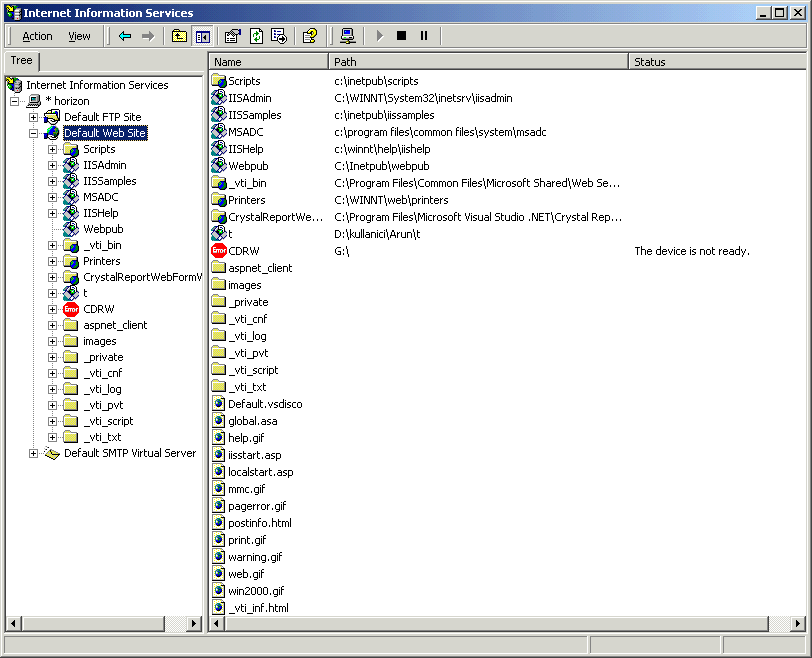
Image 5
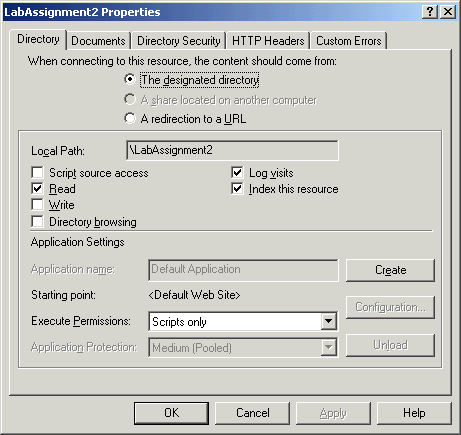
Image 6